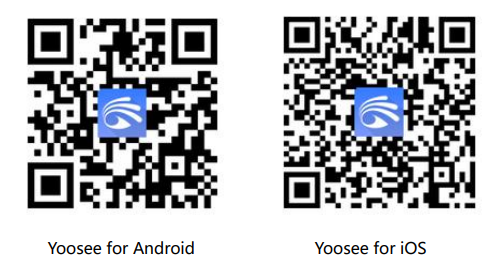
By installing the latest version of Yoosee, you can start installing and using it immediately. All you have to do is read the QR codes. Depending on the type of your mobile phone, you can download the required application from the relevant stores or for windows.
You can easily setup your Yoosee camera with wifi. Then, you can benefit from features such as real-time video monitoring, night vision, instant alarm and e-mail notifications, flexible video recording solutions, wide-angle use and mutual conversation.
Add Device
After downloading the application, you can complete the registration process with your mobile phone number and e-mail address. To add a new device, you can tap the + icon at the top right. Then select fast network communication.

Step 1: Prepare your Yoosee camera
The cameras use your router’s 2.4ghz connection. Connect to this wifi network with your mobile phone. Your device will sound “waiting for configuration” or “dudu”. Continue the installation by entering the password of the wifi you selected. If you can’t move forward when you turn on your device and you don’t hear this “du du” sound, you will need to reset your device. Try to connect again by resetting the device by pressing the “reset” button on the bottom of the device.

Step 2: Connecting and configuring the Device
When the device connects to the wifi network successfully, the online sign will be visible and you can now proceed to the configuration settings. Device configuration is done automatically, when the process is completed, it will send you a confirmed message. After that you need to give your device a name.

Different Connection Ways of Your Yoosee Camera
Wired Connection
In this form of connection, higher quality video transmission is secured. The difference is like the difference between wired internet and wireless internet. The connection is more stable. Do not forget to name the device each time or connection method.
Access Point mode
When there is no router and network available, your camera can connect via device hotspot. Your mobile phone and device should be close to each other, usually within 15 meters. First you need to reset the device with the reset button. Then connect the mobile WiFi to the device’s AP network. After the connection is confirmed, the camera can be accessed without internet.
Solutions for Yoosee Wifi Camera Connection Problems
- First, check the firmware version of your device. Make sure it’s in the latest version.
- Make sure that your phone and camera are close to each other in the AP connection format.
- Wifi connection problems are usually caused by the device being outside of the wifi area. The camera must be in the wifi reception area. Also, all cameras use 2.4ghz connection. Make sure you are using this connection on your router.
- You can check your SD memory card for video recording problems.
- Reset the device and try to install from the beginning in case of problems that you do not get rid of.
Thanks for helping me setting up my IP camera