For our Merkury camera setup, you can use your multiple devices by having the 2.4 Ghz wifi line and downloading the geeni application of this brand. The important issue here is make sure your wifi settings are 2.4 GHz via wifi router because the camera does not work at 5 GHz.
When you buy the device, it includes camera, usb cable, mounting kit, user manual and power adapter.

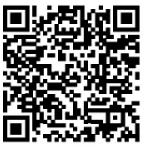
First of all, download the geeni application to your mobile phone. For this, you can use the application markets or you can download it via the following QR code.
Step 1: First of all, we create an account in the Geeni app. For this, our e-mail address and mobile phone number are required. After creating the registration, we give the necessary permissions and choose our country. Then we enter the application.
Step 2: Power adapter and USB cable were supplied with the device. Using them, we connect the device to the power supply and turn it on. The first time you start, the red light will turn on, then this light will flash. If no light is on, reset the device and try again.

Step 3 : In this step, you log into the Geeni application again. Press the + sign in the upper right corner of the home page. This means “add device”. Your camera is still flashing red, meanwhile you are selecting your wifi. You can proceed to the next step by entering your wifi password.

Yes, now wait to connect. When the red flashing light turns blue and solid, your connection is successful. You can add as many cameras as you want from the camera add section. You can use these devices with the Geeni app by scanning the QR codes of the cameras you have added or entering the security number of the device.
How to reset the Merkury Camera and what does the blinking light mean?
To reset the camera by pressing the reset button for 3-4 seconds.

Merkury Camera Settings
To adjust the device settings, open the geeni application you have installed on your mobile phone. Select your device here. You can then name these devices to avoid confusion. For example, you can name it “kids room” or “pet cam”.
By entering the settings section through the application, you can make adjustments on the following subjects;
- Device sharing
- Basic Features setting
- Motion Detection
- SD card setting
You can record videos up to 32 GB per week with your Merkury Geeni camera. The connection may be lost if the device leaves the wifi area or receives little, so it should be located close to your router. In case of possible problems, the first thing to do is to turn the device on and off, upgrade the device to the latest version, and reset it as the last operation.
Mercurial camara
How do! Setup camera
Yes just hopefully it works for me I don’t know what else to tell you but that’s what I want