On this page, we will simply tell you how to set up your camera. Further down the page, you can find information about pairing the camera and other topics that you may be curious about. First of all, you need to download the application required for installation from the playstore or ios market. We provide the necessary QR code on our page for an easy discount.
After downloading the application, put it somewhere next to your router so that your camera has good wifi reception and plug it in and run it. Make sure your wifi network should be at 2.4 ghz and you know your password correctly. Connection problems are usually due to wifi settings or weak wireless area.

You have made the necessary checks and plugged the device into the socket. The indicator light on the device will flash yellow. If it does not flash like this, reset the device by pressing the reset button on the back with a toothpick. When you turn the device back on, the yellow light will flash. In order to use the device efficiently, you must give the permissions requested by the application. In other words, location permissions must be turned on both on the phone and in the application. You can turn on location and location permissions in your phone’s settings.
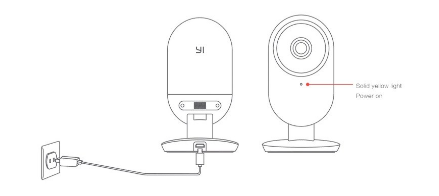
How to pair your YI Home Camera
Open the app and login to your account. If you do not have a YI Home account before, register with your e-mail address and obtain a yi home account, then log in with this account. When you open the application, it directs you to the automatic steps for the new devices installation process. But you still have to learn to pair manually. Because when you buy a second camera, you should know how to add a second camera to the same account and application.
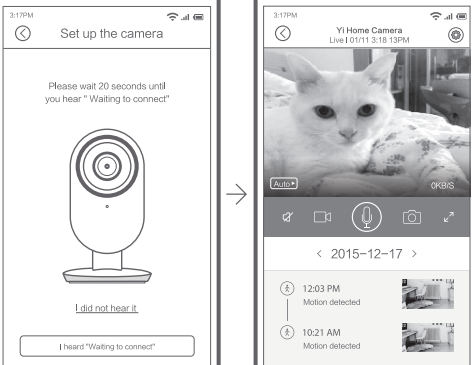
To add the camera, tap the + tab and select the device to be paired with the application. If you are confused about which device it is and there are too many devices appearing on the network, you can select the correct device by scanning the QR code located under the camera you want to pair. At the very bottom of the camera installation, there will be a phrase like Wait for 20 seconds to connect. Here it will give you an audible warning. You can skip this step by pressing the button that says this is heard.
Then you select your wifi network from the wifi connection section, enter your wifi password and complete your wifi connection. Yi home camera models use 2.4ghz wifi connection. If this is set to 5 ghz on the router, the connection will not occur. All you need to do is connect to the 2.4 Ghz wifi connection.
After wifi connection, your pairing will be completed in 3-4 minutes. By giving your device a name, you can prevent it from being confused with other cameras. For example, “room camera”.
We recommend using the cloud system on Yi Home cameras. To activate your cloud service, you must first purchase it, but its prices are not very high, but it is valuable because your recorded data will remain safe. After the cameras are full, even if you buy external memories, they make room by adding new recordings and deleting old ones as they fill up.
If you do not check in time and make enough space, you may miss the images that are very valuable to you. But in cloud-based systems, even if you forget, you can reach your data with a little extra payment at most. That’s why we recommend that you activate your cloud service on the cameras.
My camera does not work is it possible to help me thank you in advance