In order for our wifi camera to work smoothly, it must be connected to wifi clearly and the wifi signal should be sufficient. Before making our camera settings, we need to perform the wifi settings on the router.
When we say wifi settings, the wifi channel change on the router and the wireless SSID network name and password operations are understood. Channel change is more about wifi speed. There are 2 kinds of channels as 2 ghz and 5 ghz. If there are many people using the same channel on the same line, it will be correct to switch to the other channel. In addition, the download speed of one channel and the upload speed of the other are high. You can choose your channel according to your internet usage purpose.
In the process of changing wifi password, a password that is difficult to guess by using the most preferred WPA2 mode for security should be used. In other words, you can prevent your wifi password from being broken by putting a mixed password of at least 8 digits with all kinds of characters.
Now we show you how to make these settings via the tp link router;
First of all, we log into the admin interface of our router. The default input IP address changes according to the modem brand you use. The most used ip addresses are 192.168.1.1, 192.168.0.1 and 192.169.2.1.
Then enter
wireless, then
wifi settings from the main menu.
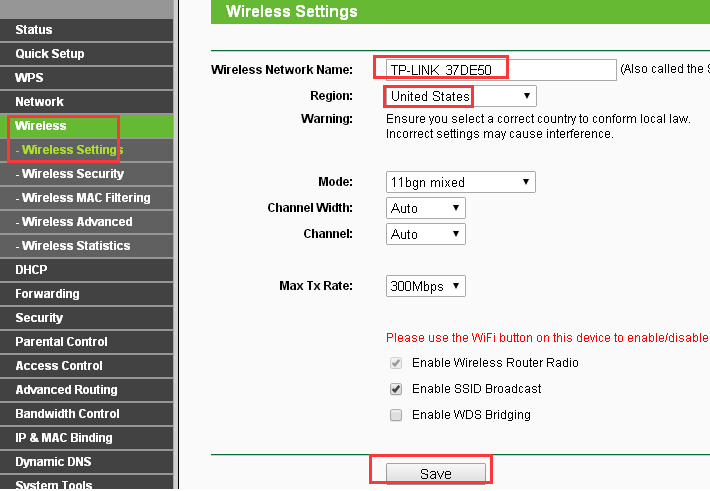
You can change your
wifi name (SSID) here. You can put your own name or your company name. And you can choose your region in the settings. Press the
SAVE button to save.
The next important part here is
wifi security settings.
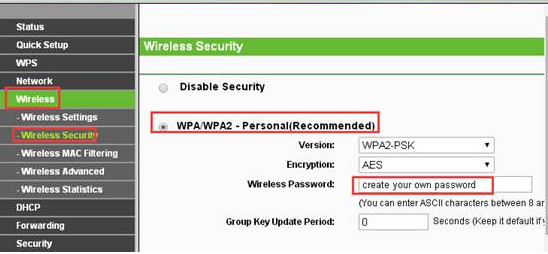
Select the
security settings section from the
wireless menu.
In this section, it is the most preferred
WPA2 security protocol and includes 152-bit encryption. So the password you will create will be very complex and more difficult to guess. You must create a password with at least 8 characters. You can see the field to change from the image below.
 Note:
Note: In order for the changes you have made to take effect, go to the system tools section and
reboot your router.
CHANGING CHANNEL ON A ROUTER
You don’t need to change your wireless channel. So if the channel you are using is interfering or the wireless speed is too slow then you may want to change it.
For 2.4GHz, channels 1, 6 and 11 are generally best be used.
For 5GHz, we recommend you use channel in Band 4, which is channel 149-165, if your router is US version.
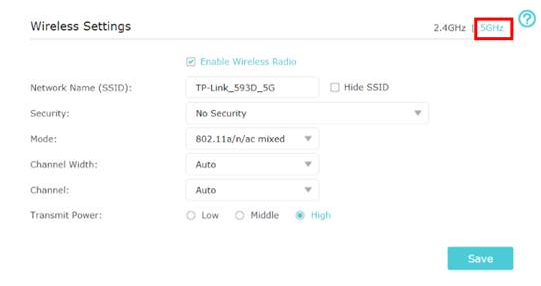
From the main menu, we come to the
wireless settings >> Channels section

5 ghz wireless channel
 Note:
Note: If you are using
TP LINK WIFI EXTENTER with the router, you can enter your device’s interface to configure the range extender wifi settings and change your wifi password with similar steps. Since your range extender will appear with a different name on your wifi network, you can also change its SSID network name.
Network problem signal too low